How to disable Apple Intelligence properly
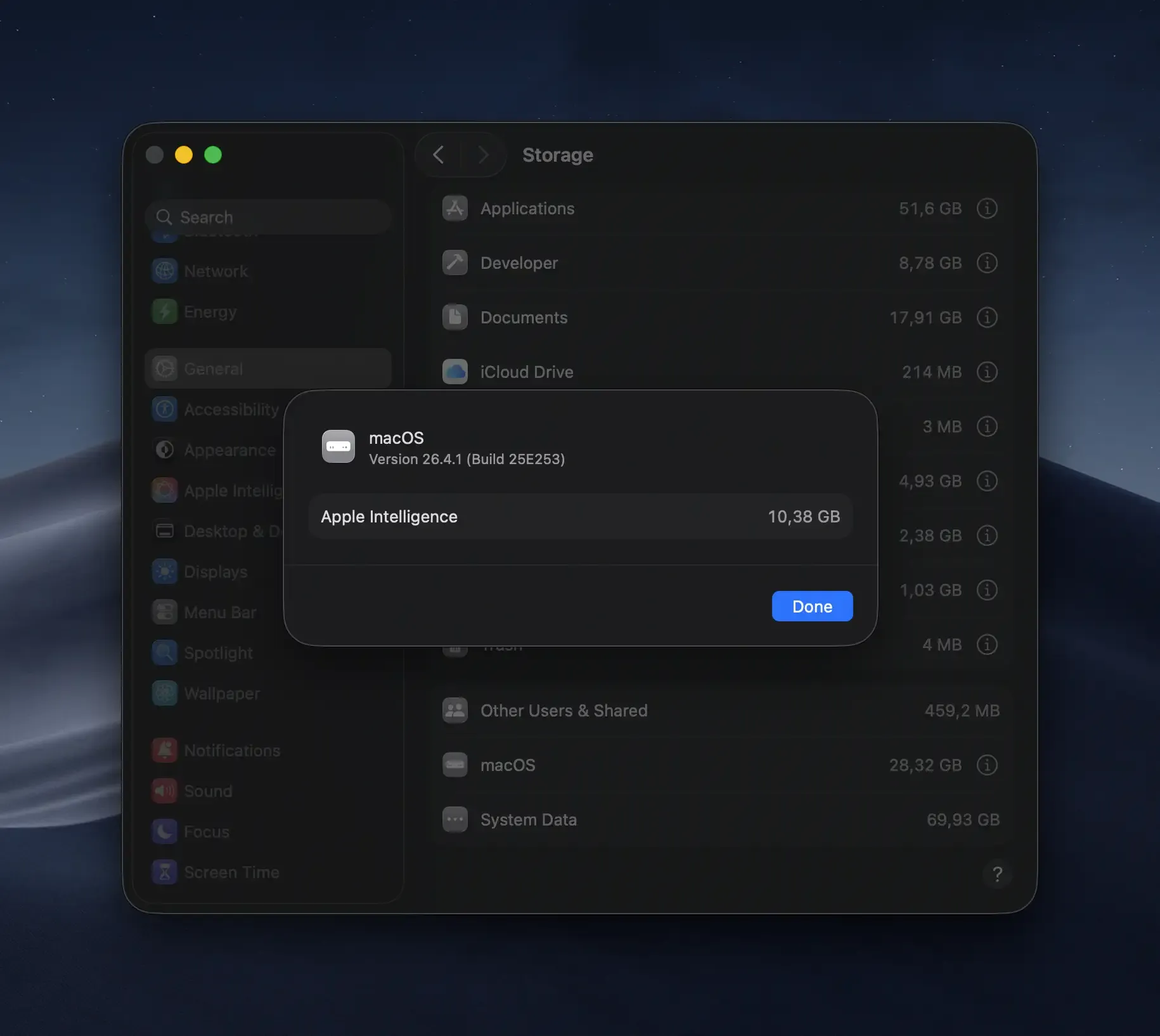
Lots of people—myself included—don’t use Apple Intelligence. Despite being turned off, it still takes up precious space, so I decided to create a simple tutorial showing how to disable it properly and remove all related data in the process.

Important
The terminal commands mentioned below won’t work outside of recovery mode.
- Disable Apple Intelligence in System Settings.
- Boot into Recovery Mode.
- Open
Disk Utility. - Right-click on
DataunderMacintosh HDand selectMount. - Quit
Disk Utilityand openTerminal. - Run the following command:bash
rm -rf /Volumes/Data/System/Library/AssetsV2/com_apple_MobileAsset_UAF_FM_GenerativeModels - If you used Image Playground, you also need to run:bash
rm -rf /Volumes/Data/System/Library/AssetsV2/com_apple_MobileAsset_UAF_FM_Visual - Reboot
Once that’s done, Apple Intelligence will no longer appear in Storage in System Settings.